## Sudoku on TI 84 Plus CE Calculator: A Comprehensive Guide
### Understanding Sudoku
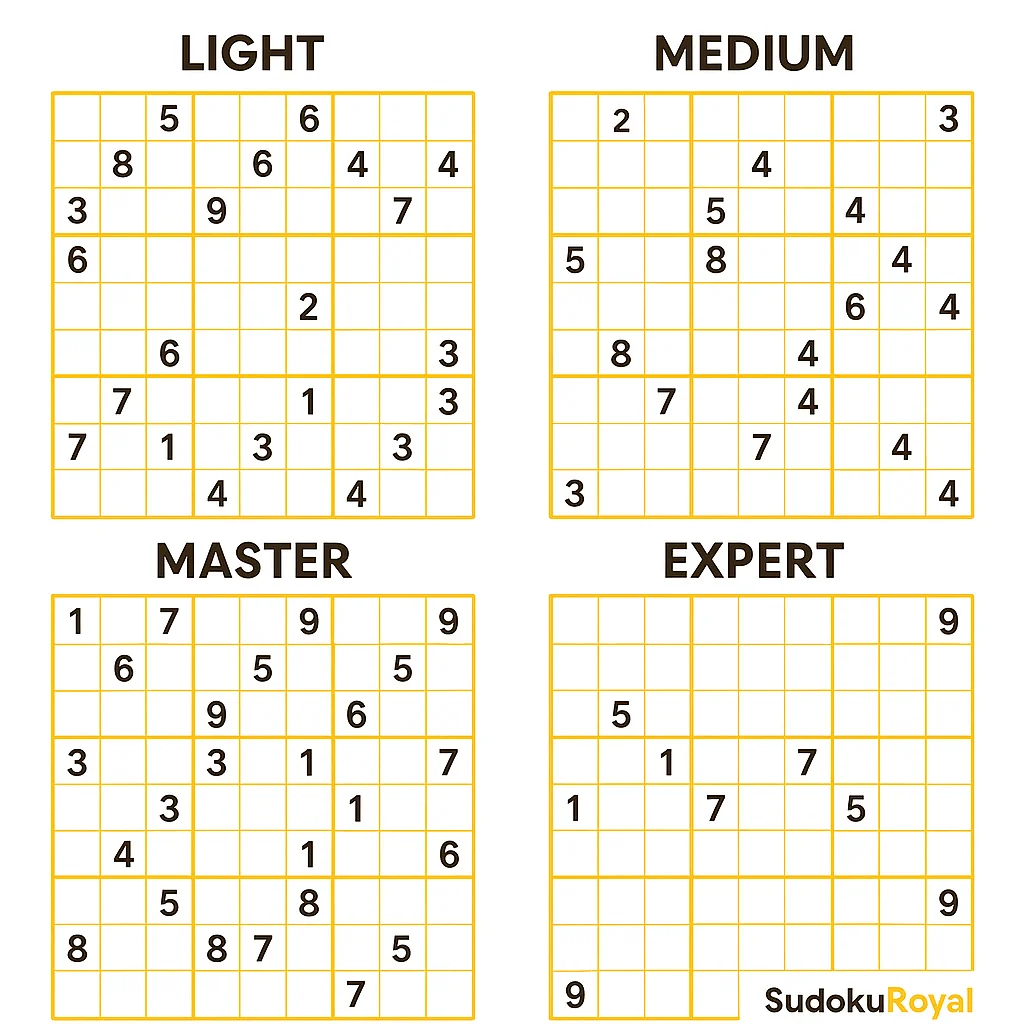
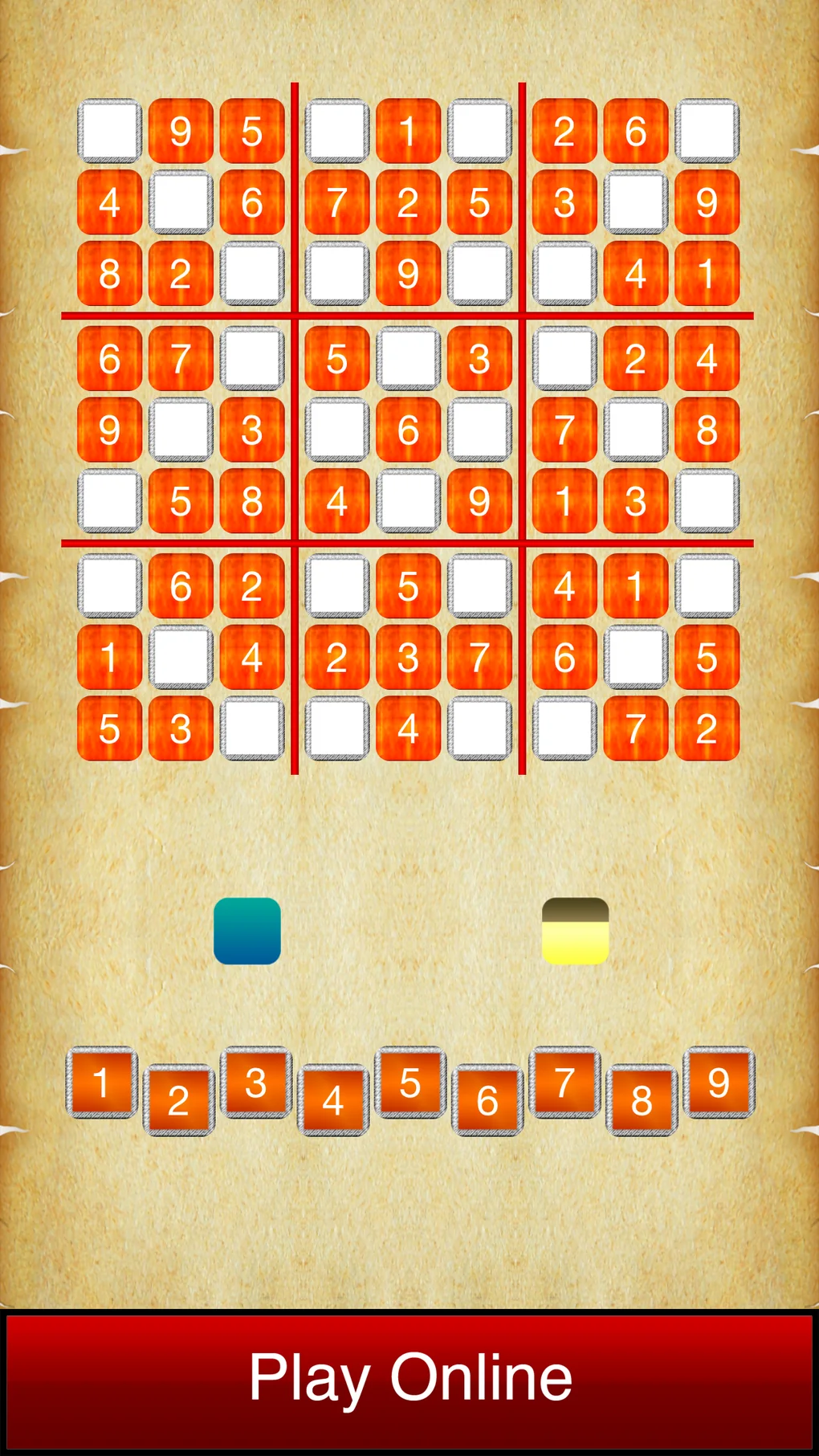
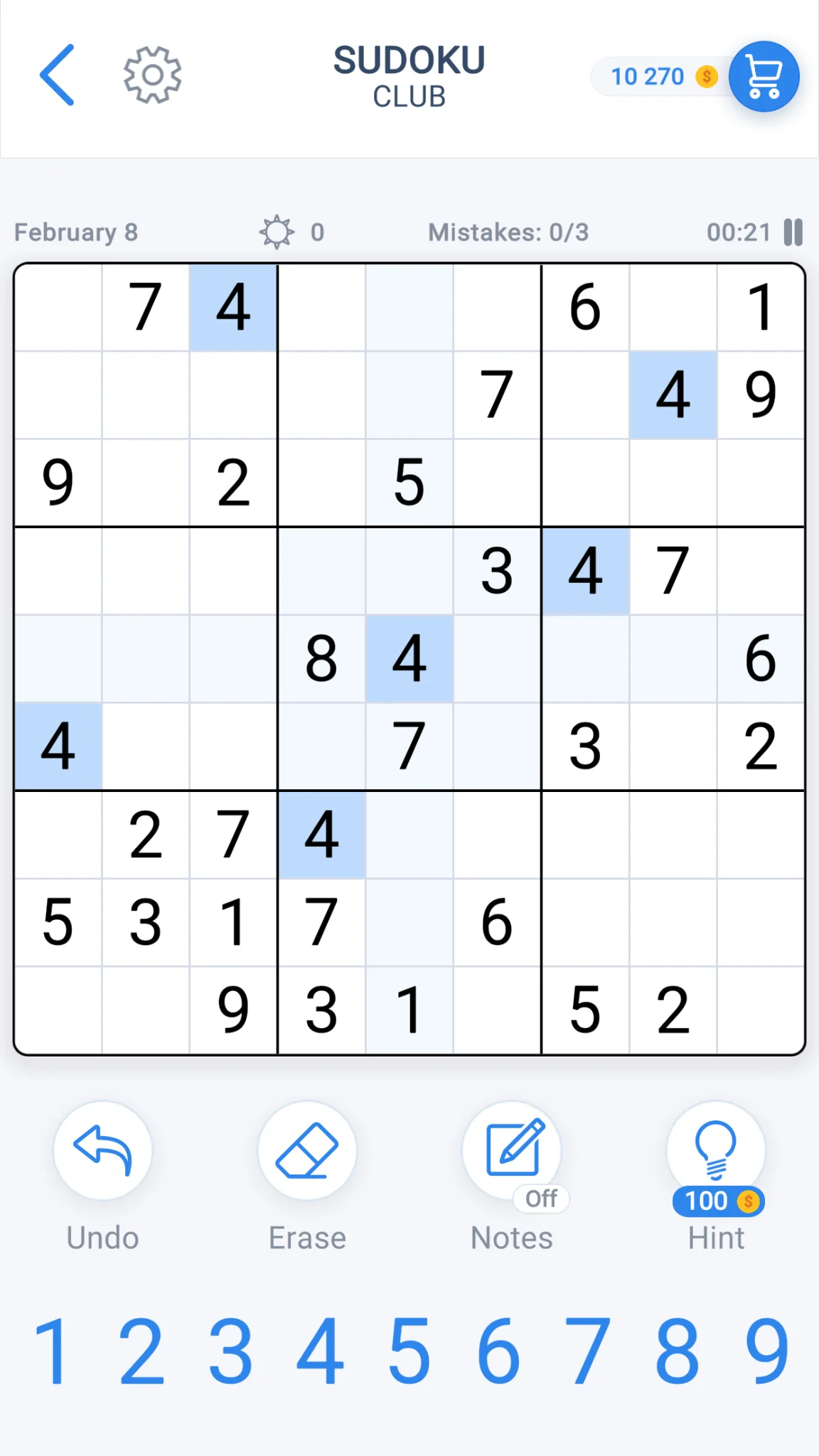
Sudoku is a popular puzzle game that involves filling a 9×9 grid with numbers so that each row, each column, and each of the nine 3×3 subgrids that compose the grid (also called “boxes”, “blocks”, or “regions”) contain all of the digits from 1 to 9. The objective is to place digits in such a way that no digit is repeated within a single row, column, or 3×3 subgrid.
### Why Use TI 84 Plus CE Calculator for Sudoku?
The TI 84 Plus CE calculator is not just for complex math problems; it can also be a handy tool for Sudoku enthusiasts. Here are some reasons why you might want to use this calculator for your Sudoku puzzles:
1. **Interactive Solution:** The calculator can help you solve Sudoku puzzles interactively, allowing you to input your numbers and see the solution step by step.
2. **Graphical Interface:** The calculator features a graphical interface that makes it easy to navigate through the puzzle and view the grid.
3. **Saves Time:** If you’re stuck, the calculator can quickly provide the correct numbers to progress in the puzzle, saving you time and frustration.
### Getting Started with Sudoku on TI 84 Plus CE
To begin solving Sudoku on your TI 84 Plus CE, follow these steps:
1. **Turn on Your Calculator:** Power on your TI 84 Plus CE.
2. **Open the Calculator:** Press the “2ND” button followed by the “PRGM” button to open the program menu.
3. **Select Sudoku Program:** Scroll down and select the Sudoku program from the list of installed apps. If it’s not installed, you may need to download it from a reliable source.
4. **Start a New Puzzle:** Once the Sudoku program is open, select “New Game” to start a new puzzle.
### FAQs
**Q: How do I enter numbers into the Sudoku grid on the TI 84 Plus CE?**
A: Use the number pad to enter numbers into the grid. Press the corresponding number key, and then use the arrow keys to navigate to the desired cell.
**Q: Can I undo a move if I make a mistake?**
A: Yes, you can undo a move. The calculator usually has a “Back” or “Undo” function that allows you to revert to a previous state of the puzzle.
**Q: What if I get stuck on a puzzle?**
A: If you’re unable to solve a puzzle, you can use the calculator’s “Solve” feature. This will show you the correct numbers for the puzzle, which you can then use as a reference.
**Q: Can I customize the difficulty level of the Sudoku puzzles?**
A: Some Sudoku programs for the TI 84 Plus CE allow you to choose the difficulty level of the puzzles. This feature might be available in the program settings or when starting a new game.
**Q: Is there a timer feature to track how long it takes me to solve a puzzle?**
A: Some Sudoku programs for the TI 84 Plus CE include a timer that starts when you begin the puzzle and stops when you finish. This feature can be useful for tracking your progress or competing against others.
**Q: Can I save my progress in the middle of solving a puzzle?**
A: The ability to save progress varies depending on the Sudoku program you’re using. Check the program’s documentation or settings to see if this feature is available.
By following this guide and utilizing the features of the TI 84 Plus CE calculator, you can enhance your Sudoku-solving experience and challenge your logical thinking skills. Enjoy the game!