### How to Play Sudoku in Excel
#### Introduction
Sudoku, a popular puzzle game, can now be enjoyed within the convenience of Microsoft Excel. Excel’s versatile tools make it an ideal platform for creating, solving, and analyzing Sudoku puzzles. This guide will walk you through the process of setting up a Sudoku grid in Excel and provide tips for enhancing your gameplay.
#### Setting Up the Sudoku Grid
1. **Create the Grid**: Open a new Excel workbook and create a grid with 9 columns and 9 rows. You can use the “Merge and Center” feature to create a single cell for each square.
2. **Number the Rows and Columns**: Label the rows and columns from 1 to 9. This will help you keep track of the puzzle’s structure.
3. **Add Sudoku Numbers**: Enter the numbers 1 to 9 into the cells that represent the Sudoku grid. These numbers will serve as placeholders for the puzzle.
#### Solving Sudoku in Excel
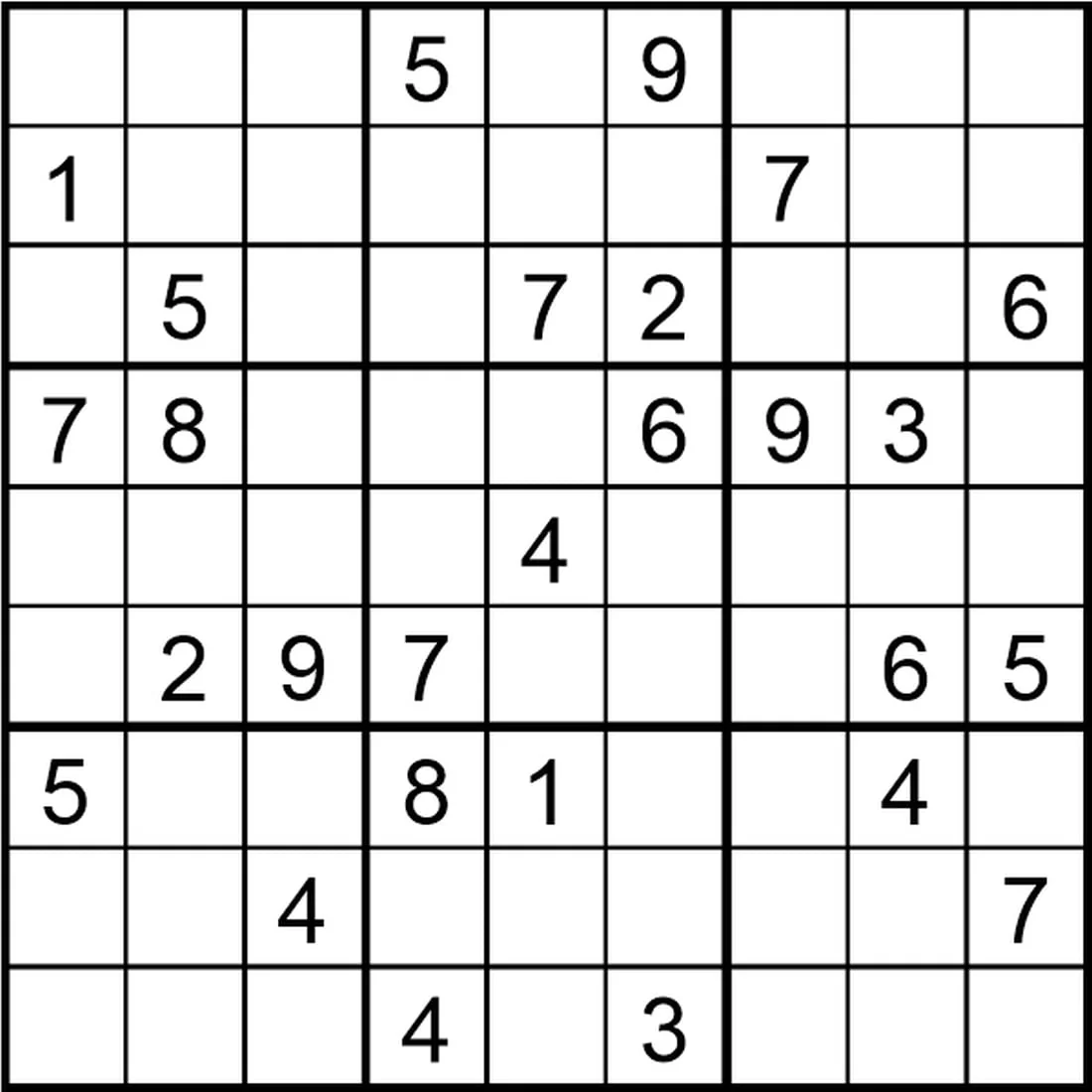
1. **Enter the Puzzle**: Fill in the given numbers into the appropriate cells according to the Sudoku puzzle you’re working on.
2. **Use Formulas for Validation**: Utilize Excel’s functions to check if the numbers in each row, column, and 3×3 subgrid are unique. For instance, you can use the `IF` function to verify that no duplicates exist.
3. **Automate the Process**: Create custom formulas or use Excel’s “What-If Analysis” tool to test different numbers and see if they fit the puzzle’s rules.
#### Advanced Tips
– **Conditional Formatting**: Apply conditional formatting to highlight cells that contain duplicate numbers, making it easier to identify potential errors.
– **Data Validation**: Use data validation to restrict the input in each cell to only allow numbers 1 to 9, ensuring that the puzzle remains valid.
– **Pivot Tables**: If you’re analyzing multiple Sudoku puzzles, use pivot tables to summarize the data and identify patterns or common solutions.
#### Frequently Asked Questions (FAQ)
**Q: Can I play Sudoku with multiple puzzles in one Excel workbook?**
A: Absolutely. You can create separate sections for each Sudoku puzzle within the same workbook, using headers or tabs to organize them.
**Q: How can I automatically check if my Sudoku solution is correct?**
A: You can create a custom Excel function or use a combination of built-in functions like `SUM`, `IF`, and `ISNUMBER` to verify that each row, column, and 3×3 subgrid contains all numbers from 1 to 9 without repetition.
**Q: Is it possible to create a Sudoku puzzle generator in Excel?**
A: Yes, it is. You can use Excel’s random number generation functions to create a puzzle generator. Start by filling the grid with random numbers and then remove some to create the puzzle.
**Q: Can I use Excel’s Solver tool to solve Sudoku puzzles?**
A: While Excel’s Solver is primarily designed for optimization problems, you can use it creatively to solve Sudoku puzzles by setting up constraints for each cell and finding a solution that satisfies all conditions.
**Q: Are there any online resources or templates available for playing Sudoku in Excel?**
A: Yes, there are numerous online resources and templates available. You can find them by searching for “Sudoku Excel template” or “Sudoku generator Excel.”
By following these steps and utilizing Excel’s features, you can enjoy solving Sudoku puzzles in a dynamic and interactive way. Happy solving!